How do I set an icon for my Minecraft server?
How to set a custom icon for your Minecraft server: upload a 64 x 64 pixel PNG as server-icon.png and restart the server.
By Yvan Watchman Updated
A custom server icon shows in the Minecraft server list, next to your server's name. You set it by putting an image named server-icon.png in your server's main folder.
What you need
- A PNG image of exactly 64 x 64 pixels. Minecraft does not load any other size.
Tip
Have a larger image? Resize it to 64 x 64 pixels with an image editor, for example Paint on Windows or Preview on macOS.
Set the icon
- Name your image
server-icon.png, all lowercase. - Log in to the game panel and open your server.
- Go to Files. You are now in the main folder (
/home/container), whereserver.propertiesis too. - Click Upload and choose
server-icon.png.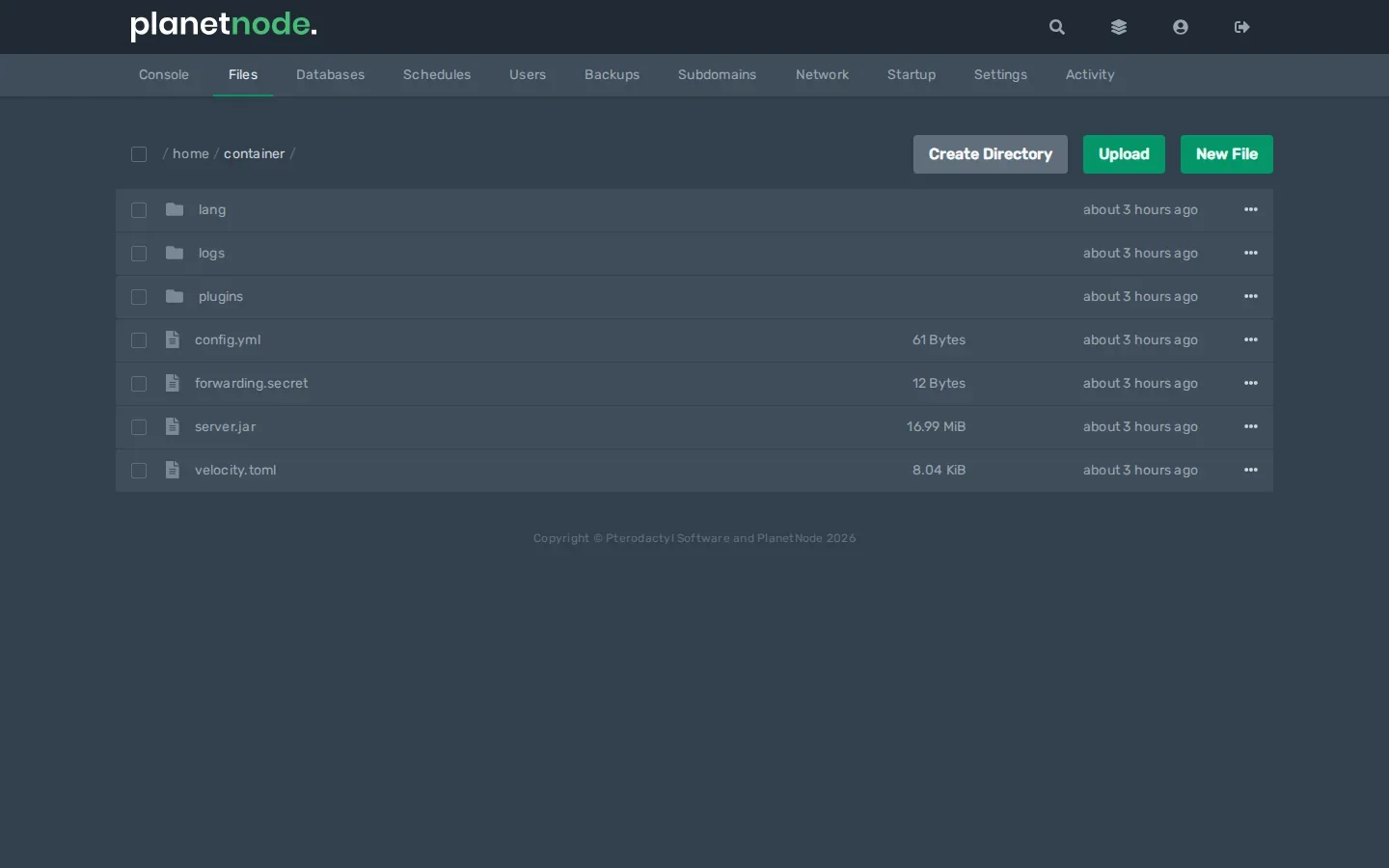
- If you uploaded the file with a different name, click the three dots next to it, choose Rename and name it
server-icon.png. - Restart your server with Restart.
Check
Open Minecraft and go to Multiplayer. Click Refresh; your own icon now shows next to your server.
Icon not showing?
- Check the name: exactly
server-icon.png, notserver-icon.png.pngorServer-Icon.PNG. - Check the size: exactly 64 x 64 pixels.
- Check that it is a real PNG. A renamed JPG does not work; save the image again as PNG.
- The file must be in the main folder, not in a subfolder.
Did this article help you?
Related articles
How do I change the Java version of my Minecraft server?
Every Minecraft version needs its own Java version. This is how you choose the right Java version for your Minecraft server in the game panel.
How do I change the version of my Minecraft server?
How to move your Minecraft server to a different version: download the jar from our mirror, replace server.jar and choose the right Java version.
How do I install mods on my Minecraft server?
How to install mods on your Minecraft server with Fabric: place the server launcher, add Fabric API and upload your mods to the mods folder.
Why does my Minecraft server crash?
Does your Minecraft server crash or not start? Find the error and fix the most common causes, from the Java version to plugins and memory.