How do I reinstall my VPS?
How to reinstall your VPS yourself in the client area: choose an operating system, confirm with your hostname and log in with the new password.
By Yvan Watchman Updated
You reinstall your VPS yourself in the client area using the Reinstall card. You choose an operating system, confirm with the hostname of your VPS, and within a few minutes a clean system is ready. You receive the new password by e-mail.
Everything on the disk is erased
Reinstalling erases everything on the disk of your VPS: files, databases, settings. This cannot be undone. Move everything you want to keep somewhere else first.
What stays the same
- Your IP addresses (IPv4 and IPv6).
- The specifications of your VPS.
- The SSH keys you provided when you ordered.
Only the contents of the disk change, and you get a new password.
What you need
- Access to the client area at my.planetnode.net.
- The hostname of your VPS. You can find it with your VPS in the client area.
- A backup of everything you want to keep.
Reinstalling your VPS
- Log in to my.planetnode.net, go to Services and choose your VPS.
- Find the Reinstall card and click Choose operating system.
- Choose the operating system you want to install. You can choose from Debian, Ubuntu, AlmaLinux, Rocky Linux and Windows Server 2025 (Evaluation). Windows needs at least 40 GB of disk. Which versions are available is described in What operating system can I install on my VPS?
- Type the hostname of your VPS to confirm.
- Tick the box to confirm that you understand all data will be lost.
- Start the reinstallation.
Following the progress
After you start, the page of your VPS shows which step is in progress. The page refreshes by itself; you do not need to do anything. A reinstallation usually takes a few minutes.
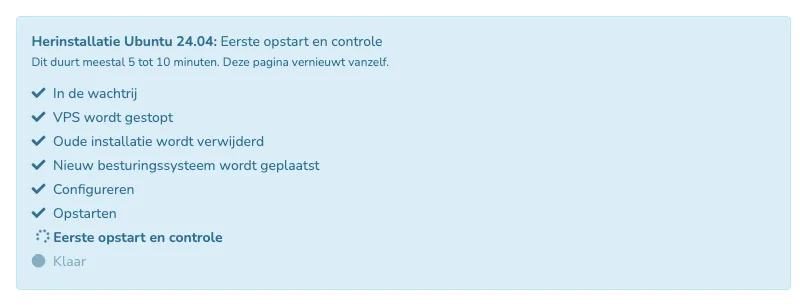
The steps are:
- Queued
- Stopping the VPS
- Removing the old installation
- Installing the new operating system
- Configuring
- Starting
- First boot and checks
- Done
If the reinstallation fails, support is notified automatically. You do not need to open a ticket yourself for that.
Once every 30 minutes
You can reinstall your VPS once every 30 minutes. If you want to reinstall again straight away, wait until that time has passed.
Logging in after reinstalling
When the installation is done, you receive an e-mail with a new password. Your old password no longer works. You log in with the default user of the system you chose:
| Operating system | Username |
|---|---|
| Debian | debian |
| Ubuntu | ubuntu |
| AlmaLinux | almalinux |
| Rocky Linux | rocky |
| Windows Server | Administrator |
If you provided an SSH key when you ordered, you log in with it again. How logging in works exactly is described in How do I log into my VPS?
Warning about a changed host key
Your IP address stays the same, but the new system has a new SSH host key. Your SSH program therefore warns you on the first connection. Remove the old key on your own computer with ssh-keygen -R IP_ADDRESS and connect again.
A system that is not in the list
Do you want your own partitioning, a system that is not in the list, or a rescue environment? Then you install it yourself via netboot.xyz. You also find that on the Reinstall card.
See also
- How do I log into my VPS?
- What operating system can I install on my VPS?
- Can I install Windows on my VPS?
Still stuck? Open a ticket and mention your server name.
Did this article help you?
Related articles
Can I install Windows on my VPS?
Yes: you choose Windows Server 2025 yourself when you order or reinstall your VPS, from the X4 package. This is how the licence works and how you log in.
How do I upgrade my VPS resources?
Learn how to add more RAM, CPU or storage to your VPS when you need more power.
How do I install an operating system on my VPS myself with netboot.xyz?
How to boot your VPS with netboot.xyz and install an operating system yourself via the console, with manual network settings.
How do I use the console of my VPS?
The console in your browser gets you into your VPS when SSH does not work. This is how you open the console in the client area and log in.