How do I add a contact or sub-account?
Add a contact or sub-account to your client area, choose which emails they receive and which permissions a sub-account gets.
By Hermie Updated
You add a contact in the client area under Contacts/Sub-Accounts. That way, for example, your accountant can receive the invoices. If you make it a sub-account, that person can also log in, with only the permissions you tick.
Add a contact
- Log in to my.planetnode.net.
- On the dashboard, click New Contact... under Contacts. You can also go to Contacts/Sub-Accounts via Update.
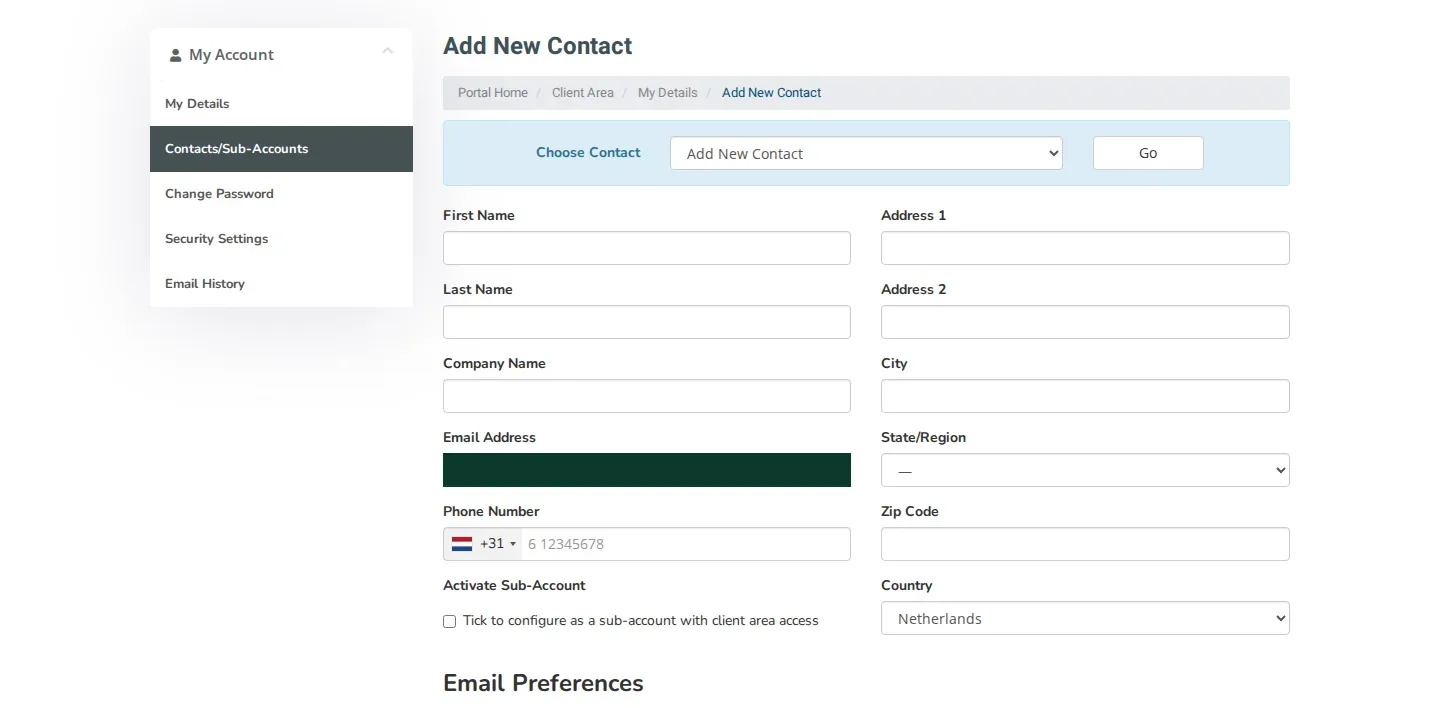
- Make sure Choose Contact is set to Add New Contact.
- Fill in the details: First Name, Last Name, Company Name, Email Address, Phone Number and the address.
- Under Email Preferences, choose which emails this person receives (see below).
- Click Save Changes.
Email preferences
Tick which emails the contact receives:
- General Emails: general announcements and password reminders.
- Product Emails: order details, welcome emails and similar.
- Domain Emails: renewal notices and registration confirmations.
- Invoice Emails: invoices and billing reminders.
- Support Emails: the client area describes this as "Allow this user to open tickets in your account".
Only forward the invoices
Want your accountant to receive only the invoices? Add a contact with only Invoice Emails ticked and do not make it a sub-account.
Make it a sub-account
A sub-account can log in to your account with its own email address and password.
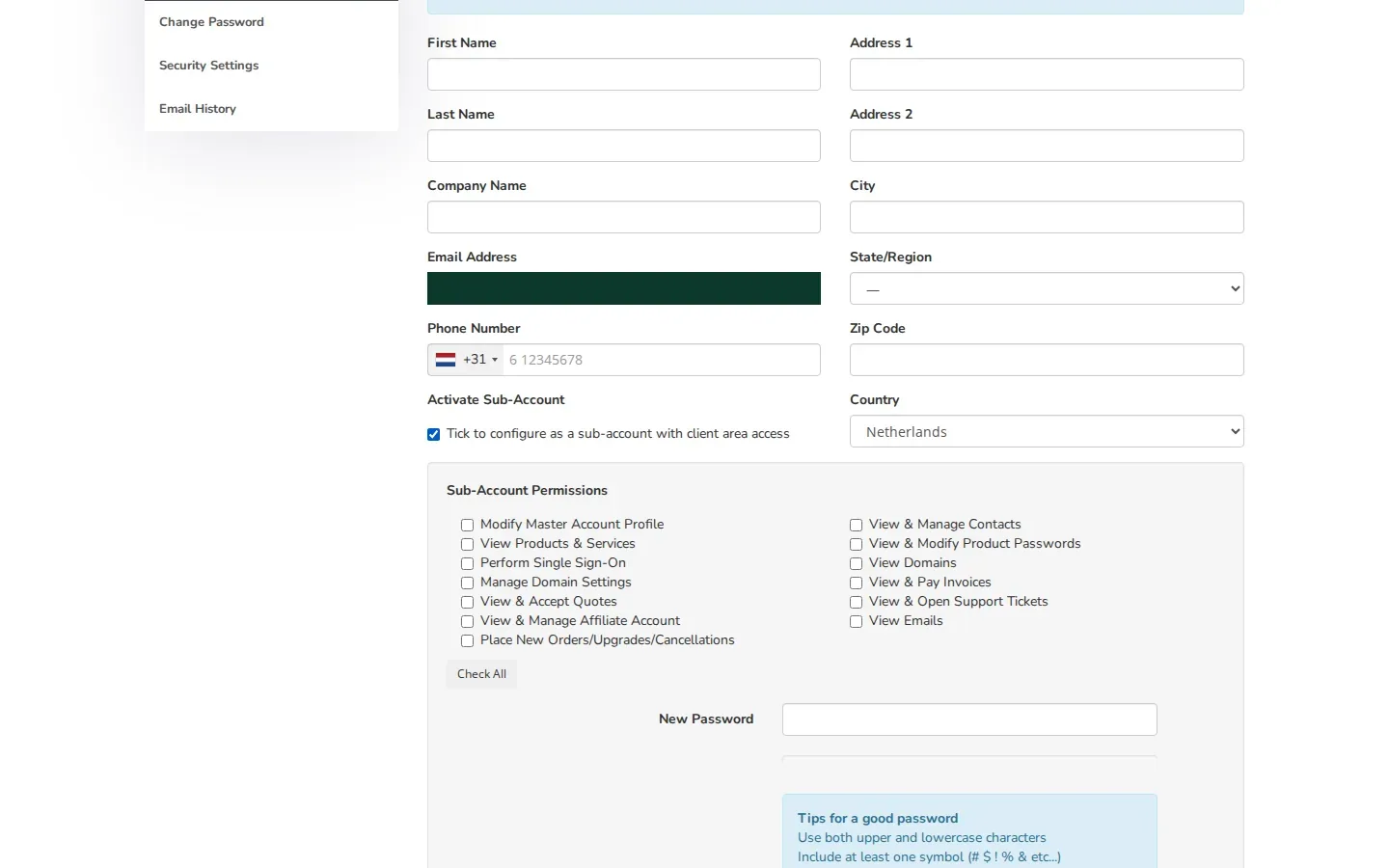
- Under Activate Sub-Account, tick Tick to configure as a sub-account with client area access.
- A list of permissions appears under Sub-Account Permissions. Only tick what this person needs, for example View & Pay Invoices or View & Open Support Tickets. Check All ticks everything.
- Enter a password for the sub-account under New Password and Confirm New Password.
- Click Save Changes.
Do not give more permissions than needed
Permissions such as Modify Master Account Profile, Place New Orders/Upgrades/Cancellations and View & Modify Product Passwords give a lot of access. Only tick them for someone you fully trust.
Edit a contact
Select the contact you want to change under Choose Contact and click Go. Change the details, permissions or email preferences and click Save Changes.
Check
The new contact is listed on the dashboard under Contacts and in the Choose Contact list.
Did this article help you?
Related articles
How do I change the password of my client area?
Change the password you use to log in to the my.planetnode.net client area via My Details and Change Password, in a few simple steps.
How do I enable two-factor authentication (2FA)?
Secure your client area with two-factor authentication: choose Yubico or Time Based Tokens with an app like Google Authenticator and enable 2FA.
How do I open a ticket and which department do I choose?
Open a support ticket in the client area and choose the right department: Support, Sales or Administratie, so your question lands in the right place.
How do I log in to the client area and what do I do if I forgot my password?
Log in to the my.planetnode.net client area with your email address and password, or request a new password if you have forgotten it.