How do I enable two-factor authentication (2FA)?
Secure your client area with two-factor authentication: choose Yubico or Time Based Tokens with an app like Google Authenticator and enable 2FA.
By Hermie Updated
With two-factor authentication (2FA), the client area asks for a second factor at login, such as a code from an app, on top of your email address and password. You enable it on the Security Settings page in my.planetnode.net. You can choose between two methods:
- Time Based Tokens: codes from an app like Google Authenticator or Duo on your phone.
- Yubico: codes from a YubiKey hardware device.
What you need
- For Time Based Tokens: an authenticator app on your phone.
- For Yubico: a YubiKey.
Enable two-factor authentication
- Log in to my.planetnode.net.
- On the dashboard, click Update under Your Info.
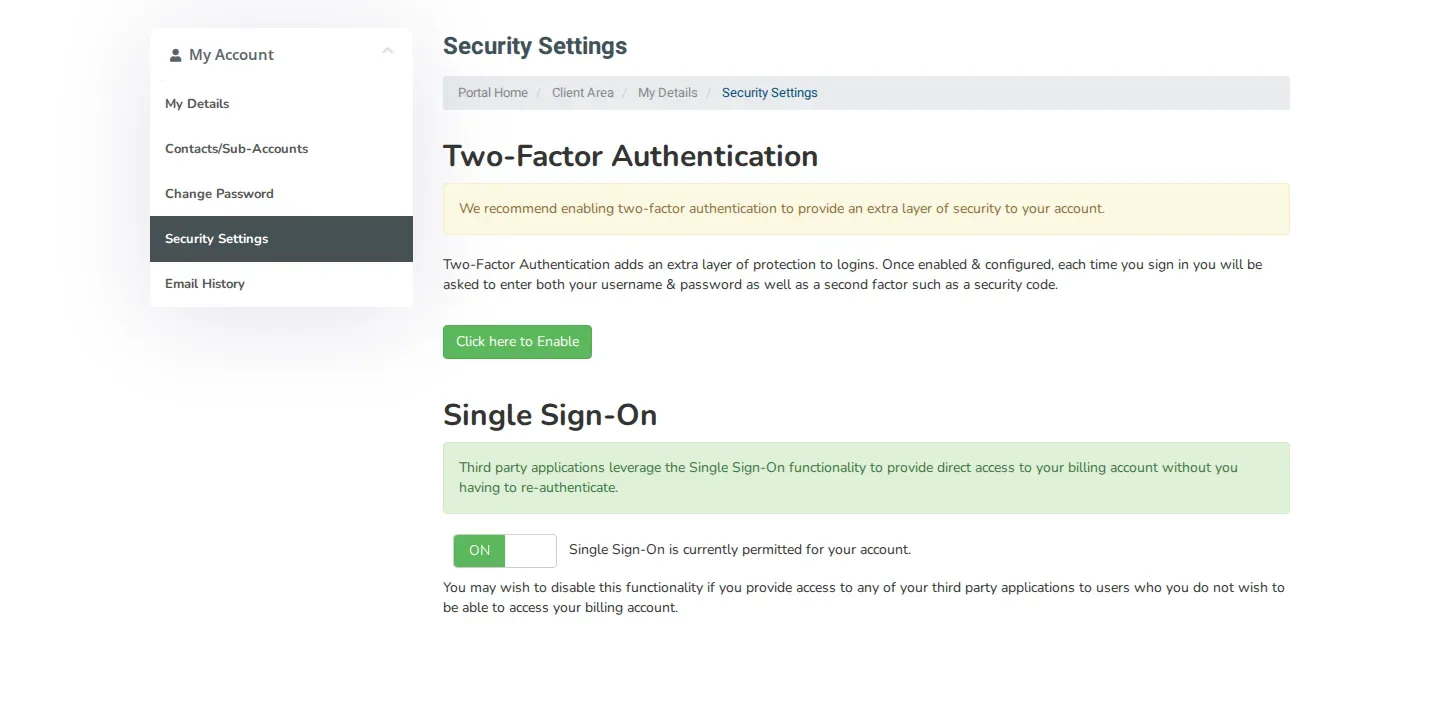
- In the My Account menu on the left, click Security Settings.
- In the Two-Factor Authentication block, click Click here to Enable.
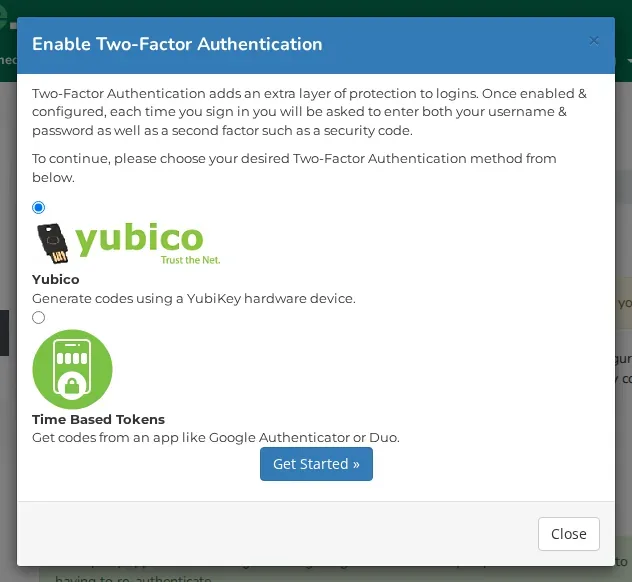
- In the Enable Two-Factor Authentication window, choose your method, Yubico or Time Based Tokens, and click Get Started ».
With Time Based Tokens (app)
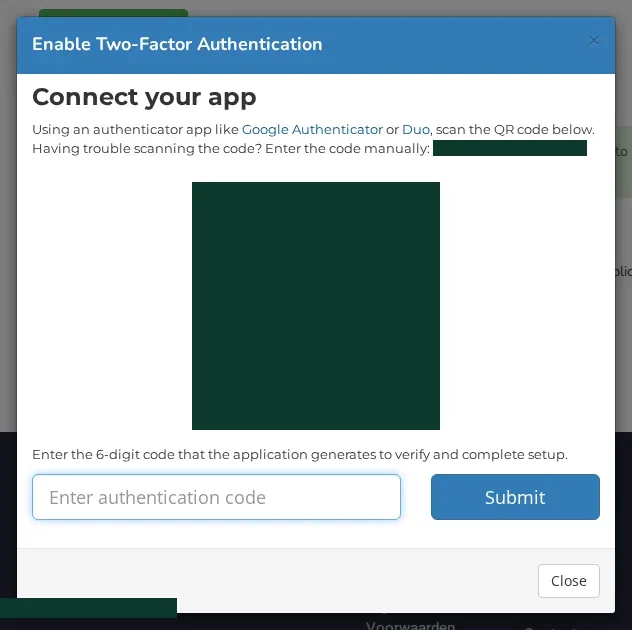
- Open your authenticator app and scan the QR code in the Connect your app window. If scanning does not work, enter the code shown there manually in your app.
- Your app now shows a 6-digit code. Enter it under Enter authentication code.
- Click Submit.
Keep your codes safe
The QR code and the manual code give access to your second factor. Do not share them and do not keep a screenshot of them anywhere unprotected.
With Yubico (YubiKey)
If you choose Yubico, follow the instructions in the window after Get Started » to link your YubiKey.
Check
Log out and log in again. After your email address and password, the client area now asks for your code. The Security Settings page shows that two-factor authentication is enabled.
Not working?
If the code from your app is not accepted, check that the time on your phone is set automatically. Still stuck? Open a ticket.
Did this article help you?
Related articles
How do I change the password of my client area?
Change the password you use to log in to the my.planetnode.net client area via My Details and Change Password, in a few simple steps.
How do I open a ticket and which department do I choose?
Open a support ticket in the client area and choose the right department: Support, Sales or Administratie, so your question lands in the right place.
How do I log in to the client area and what do I do if I forgot my password?
Log in to the my.planetnode.net client area with your email address and password, or request a new password if you have forgotten it.
Where can I find my services and how do I open the panel of a service?
Find all your services in the client area under Services and My Services, and open the management panel of a service with Go to Panel.