How do I back up my VPS and how do I restore a backup?
With the backup add-on we back up your entire VPS every night. Here is how to make a backup yourself, restore one or delete one.
By Yvan Watchman Updated
With the backup add-on we back up your entire VPS every night. We keep 7 of them. In the client area you can see your backups, make one yourself, restore one or delete one.
What you need
- A VPS with the backup add-on. You order the add-on together with your VPS, or later via Services > View Available Addons in the client area. You can find the price on the VPS page.
- Access to the client area at my.planetnode.net.
How the backups work
- Every night between 01:00 and 06:00 we automatically back up your entire VPS.
- We keep 7 backups. When a new one is added, the oldest one is removed.
- The backups are stored encrypted on a separate backup server, so not on the same server as your VPS.
- If your VPS runs Windows, we make the backup via the guest agent (VSS) if it is running.
Viewing your backups
- Log in to the client area and go to Services.
- Click your VPS.
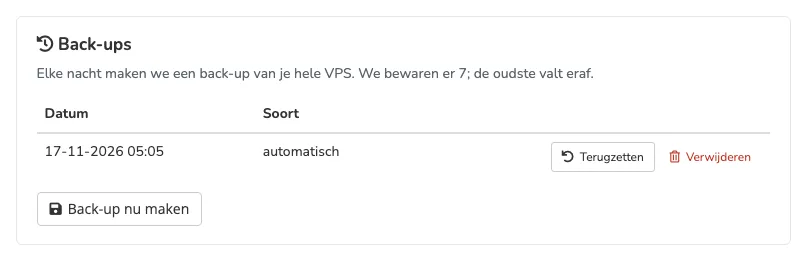
- On the Backups card you see the Date and the Type of each backup: automatic or manual.
Making a backup yourself
About to make a big change, such as an update? Make a backup yourself first.
- On the Backups card, click Back up now.
- The backup appears in the list with the Type manual.
Good to know
You can make one manual backup per 24 hours. A manual backup counts towards the 7 slots: if they are full, the oldest backup is removed.
Restoring a backup
Note
When you restore, your entire VPS goes back to the state of that backup. Everything that changed after that is lost. The IP address and the specifications of your VPS stay the same.
- On the Backups card, click Restore next to the backup you want to use.
- Type the hostname of your VPS to confirm.
- Click Restore.
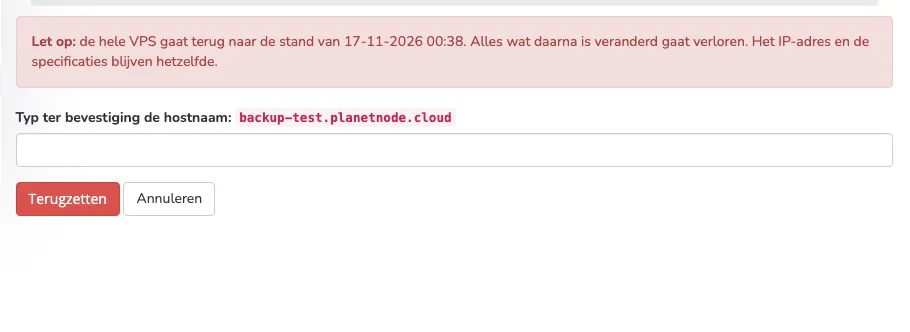
When the restore is done, you see a notification and receive a confirmation by e-mail.

Deleting a backup
Warning
A deleted backup is gone for good and cannot be recovered.
- On the Backups card, click Delete next to the backup.
- Type the hostname of your VPS to confirm, and confirm.
You receive an e-mail that the backup has been deleted.
Checking
Look at the Backups card: a new backup is in the list, a deleted one is gone. After a restore, log in to your VPS and check whether your files and services are in the expected state.
What is not possible
- Restoring individual files or folders. You always restore the entire VPS.
- Downloading a backup.
Tip
Do you have files you want to keep after the restore? Copy them to a place other than your VPS first.
Cancelling
If you cancel the add-on or your VPS, we keep your backups for another 7 days. After that they are gone.
Backup or snapshot?
A snapshot is not a backup. A snapshot is a point-in-time copy that we make on request; read How do I make a snapshot of my VPS?. For protection against data loss, use the backup add-on.
Related articles
Still stuck? Open a ticket and mention your server name.
Did this article help you?
Related articles
Can I install Windows on my VPS?
Yes: you choose Windows Server 2025 yourself when you order or reinstall your VPS, from the X4 package. This is how the licence works and how you log in.
How do I upgrade my VPS resources?
Learn how to add more RAM, CPU or storage to your VPS when you need more power.
How do I install an operating system on my VPS myself with netboot.xyz?
How to boot your VPS with netboot.xyz and install an operating system yourself via the console, with manual network settings.
How do I reinstall my VPS?
How to reinstall your VPS yourself in the client area: choose an operating system, confirm with your hostname and log in with the new password.